MSP Airport Parking Sign In: Account Guide 2026
Learn how to sign in to MSP airport parking online, create an account, manage reservations, and access QR codes. Covers rates, tips, and troubleshooting for 2026.
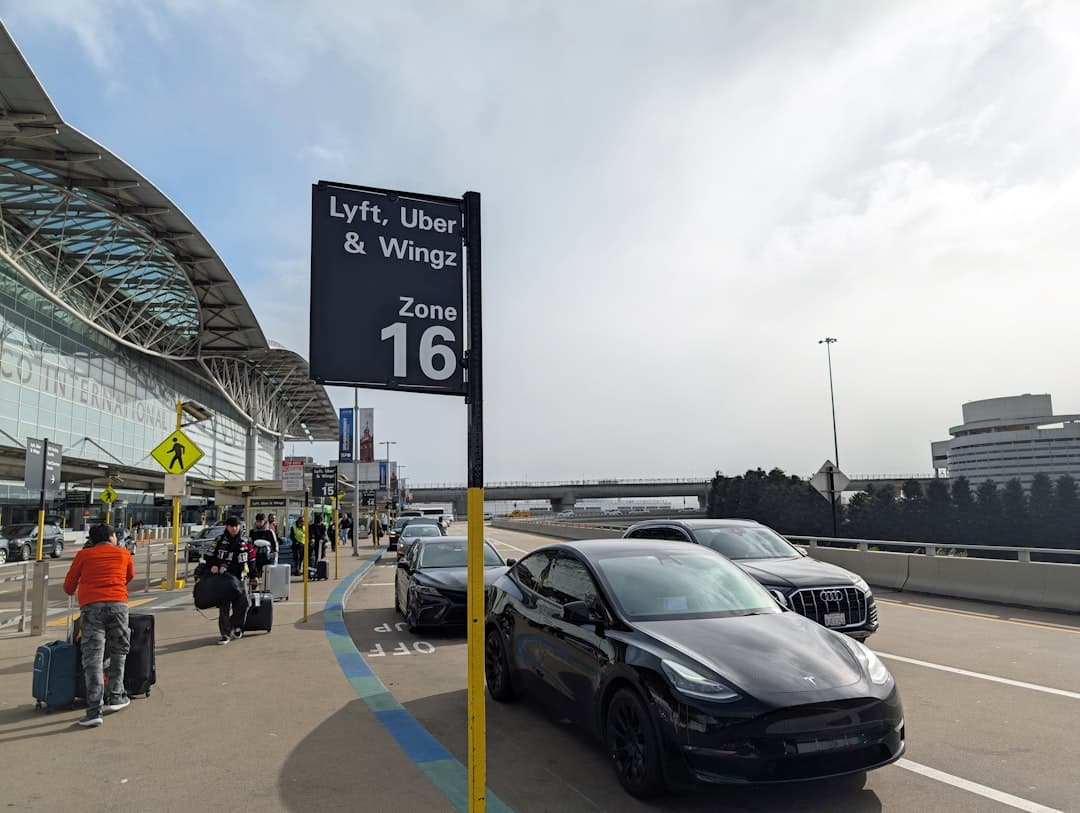
Book MSP airport parking — pick your dates
Pick your dates to search
Quick Answer
To sign in to MSP airport parking, visit mspairport.com/parking and click "Prebook Parking" or "My Account." Enter your registered email and password. The portal is mobile-optimized and managed by the Metropolitan Airports Commission (MAC). Once signed in, view reservations, cancel bookings, and access your QR code for contactless gate entry.
Back to MSP Airport Parking Coupons & Deals | Complete MSP Airport Parking Guide
Signing in to MSP airport parking online means accessing your account on the Minneapolis-Saint Paul International Airport parking portal to prebook a spot, view reservations, or manage existing bookings — all before you arrive at the airport. You can sign in at mspairport.com/parking, where the Metropolitan Airports Commission (MAC) manages all on-airport reservations for Terminal 1 and Terminal 2.
- Sign-in portal: Managed by MAC at mspairport.com/parking — covers all on-airport ramps.
- Account vs. guest: A signed-in account lets you view history, cancel easily, and skip re-entering your details.
- On-airport rates: Quick Ride Ramp $19/day, Value Parking (Terminal 2) $21/day, Terminal 1 Daily Ramps up to $30/day.
- Off-site savings: Pre-booked off-site lots start from $9.95/day — up to 67% cheaper than on-airport daily ramps.
- QR code entry: After booking, your confirmation email includes a QR code for contactless gate entry and exit.
- Cancellation window: Most pre-booked MSP reservations can be cancelled up to 12 hours before your arrival date.
Before you drive to the airport, compare MSP airport parking rates starting from $9.95/day on Triply — including off-site lots with free 24/7 shuttles to both terminals.
How Do You Sign In to MSP Airport Parking Online?
To sign in to MSP's online parking system, go to mspairport.com/parking and click the reservation or prebook link. The portal is powered by the MAC's online parking platform. Here are the steps:
- Visit mspairport.com/parking on any browser or mobile device.
- Click "Prebook Parking" or the reservations button on the parking page.
- On the booking page, look for the "Sign In" or "My Account" link in the top navigation.
- Enter your registered email address and password.
- Click "Sign In" to access your dashboard.
The portal works on both desktop and mobile browsers. There is no separate MSP airport parking app — all sign-in and booking actions happen through the web portal. If you are on a mobile device, the site is mobile-optimized, so the experience is smooth on a phone or tablet.
Once signed in, the dashboard shows your upcoming reservations, past bookings, and any QR codes associated with active prebookings. Keep your confirmation email — it contains your QR code for contactless entry and exit at the parking ramp gates.
How Do You Create an MSP Parking Account for the First Time?
Creating an MSP parking account is free and takes about two minutes. You only need a valid email address to get started.
- Go to mspairport.com/parking and click "Prebook Parking".
- On the sign-in screen, select "Create an Account" or "Register".
- Enter your first name, last name, email address, and a password.
- Agree to the terms and submit the form.
- Check your inbox for a verification email and click the confirmation link.
- Your account is now active — sign in and start booking.
There is no cost to create an account. You do not need a rewards membership or loyalty number. The MAC does not currently offer a formal points-based loyalty program for standard public parking accounts (verified June 2026). However, the ePark Elite program exists for frequent travelers and employees — it provides a monthly access pass for a flat fee. Check the official MSP parking page for current ePark Elite pricing, as rates can change.
Employee and contractor parking uses a separate ZipPass digital access system. ZipPass sign-in is different from the public portal — it is managed through a separate employee credentials flow and is not available to general travelers.
What Can You Do After Signing In to Your MSP Parking Account?
Signing in unlocks several useful features beyond just booking a spot. Here is what you can do once you are logged in:
- Book a new reservation — Select your terminal, parking ramp, arrival date, and departure date. Pay by card and receive your QR code instantly.
- View active reservations — See all upcoming bookings in one place, including QR codes, lot names, and dates.
- Access booking history — Review past trips and receipts for expense reporting.
- Cancel a reservation — Cancel eligible bookings directly from the dashboard (typically up to 12 hours before arrival).
- Modify a reservation — Some booking types allow date changes — check the modification rules for your specific lot before adjusting.
- Download or resend QR codes — If you lose your confirmation email, retrieve QR codes from the account dashboard.
The QR code is especially important. At Value Parking (Terminal 2) and the Quick Ride Ramp, you scan your QR code at the entry gate instead of taking a physical ticket. This speeds up entry and exit. If you booked as a guest, you need to find the original confirmation email — there is no dashboard to retrieve it from. That is one reason a signed-in account is worth creating.
How Do You Manage or Cancel a Reservation After Signing In?
Managing your booking after sign-in is straightforward. From your account dashboard, click on the active reservation you want to change.
To cancel: Select the booking, click "Cancel Reservation", and confirm. Refunds typically process within a few business days back to your original payment method. The standard cancellation window is up to 12 hours before your scheduled arrival. Cancellations made within 12 hours may not be eligible for a full refund — check your booking confirmation for the exact policy that applies to your reservation. For a full breakdown of refund timelines and edge cases, see the MSP airport parking cancellation policy guide.
To modify: Not all reservation types allow date changes. If modification is available, you will see an "Edit" or "Modify" button next to the booking. Change your dates and reconfirm payment if there is a price difference. If modification is not available, cancel and rebook — just make sure your new dates have availability, especially around holidays.

What Are the MSP Airport Parking Options You Can Book Online?
MSP's on-airport parking portal lets you prebook several ramp types across both terminals. Here is a summary of what is bookable online and current 2026 rates (per MAC's official parking page):
| Parking Option | Terminal | Daily Max Rate | Shuttle Needed? |
|---|---|---|---|
| Terminal 1 Daily Ramps (Green, Gold, Blue, Red, Silver, Pink, Brown) | Terminal 1 — Lindbergh | $30/day | No — direct ramp access |
| Valet Parking | Terminal 1 — upper east roadway, Door 2 | $50/day | No — drop off at door |
| Value Parking (Orange Ramp) | Terminal 2 — Humphrey | $21/day | No — walkable via Orange Ramp |
| Quick Ride Ramp | Both terminals via free shuttle | $19/day | Yes — free 24/7 curbside shuttle |
The Quick Ride Ramp at $19/day is the most affordable on-airport option. It includes a free 24/7 curbside shuttle to both Terminal 1 (Lindbergh) and Terminal 2 (Humphrey). For more detail on this ramp, check the MSP airport parking Quick Ride guide.
The MSP airport holds roughly 26,000 vehicles across all on-airport facilities, per MAC. Spots fill fast during peak travel periods. MSP is spending $501 million in 2026 alone on capital improvements — including the ongoing Terminal 2 North Expansion ($263M) — but no parking closures are expected this year. Still, prebooking guarantees your space.
Off-site lots are booked through third-party platforms — not the MAC portal. Off-site options range from $9.95/day (Comfort Inn Minneapolis Airport Park & Fly) to $29/day (InterContinental MSP Garage, which connects via skyway to Terminal 1). For the cheapest off-site options with free shuttles, see cheapest parking near MSP airport with shuttle.
How Does Guest Checkout Compare to a Signed-In Account at MSP?
You can book MSP parking without creating an account using guest checkout. Both options complete your reservation — but there are real differences worth knowing.
- Guest checkout: Enter your email, travel dates, and payment details. You get a confirmation email with your QR code. No account is saved. To cancel, you must use the link in your confirmation email. If you lose that email, retrieving your booking is harder.
- Signed-in account: All bookings are saved in your dashboard. QR codes are retrievable anytime. Cancellations and modifications are done in one place. No need to search your inbox under pressure at the airport.
For a one-time trip, guest checkout works fine. For frequent travelers — anyone flying out of MSP more than a couple of times a year — a signed-in account saves real time and stress. You can also link a card on file, which speeds up future bookings. The account is free and there is no spam risk from creating one.
Guest checkout still requires a valid email. That email is your only way to access the confirmation and QR code, so use one you check regularly. If you book as a guest and lose the email, contact the MAC parking office directly for help. For parking office contact details and hours, the MSP airport parking office guide has full information.
What Should You Do If You Can't Sign In to MSP Online Parking?
Login problems are frustrating — especially close to a trip. Here are the most common issues and how to fix them fast.
Forgotten Password
Click "Forgot Password" on the sign-in page. Enter your registered email address and check your inbox for a reset link. The reset email typically arrives within a few minutes. If it does not appear, check your spam folder. Password reset links usually expire within 24 hours, so use the link promptly.
Wrong Email Address
If you cannot remember which email you used, try any address you commonly use for travel bookings. Guest checkout confirmations and account registrations both require a valid email — look for a past MSP parking confirmation email to identify the correct address.
Account Locked or Not Recognized
Too many failed login attempts can temporarily lock your account. Wait 15-30 minutes before trying again. If the account is still not recognized, use the password reset flow — this also works if you're not sure whether you created an account or checked out as a guest previously.
Browser or Technical Issues
Clear your browser cache and cookies, then try again. The MSP parking portal works best on up-to-date Chrome, Safari, or Firefox. If you are on mobile and having trouble, try the desktop version or a different browser.
If none of the above works, contact the MAC parking team directly through the contact information listed on mspairport.com/parking. Have your reservation number or confirmation email ready to speed up the process.
Ready to Book MSP Airport Parking?
Creating an MSP parking account is free, fast, and makes managing reservations much easier. Whether you book on-airport at the Quick Ride Ramp for $19/day or find an off-site lot from $9.95/day, prebooking guarantees your spot — especially important during busy summer travel season and around holiday weekends when MSP's ~26,000-space capacity fills up. Before you book through the official portal, compare all MSP parking options — on-airport and off-site — in one place. Find and book MSP airport parking starting from $9.95/day on Triply and lock in your rate before prices rise.
Compare MSP parking rates — a typical off-airport lot near Minneapolis-Saint Paul International Airport costs about 55% less per day than the airport's own terminal garage.
Frequently Asked Questions
Looking for the complete guide?
MSP Airport Parking from $10/day: Rates & Best Lots 2026More MSP Parking Guides

MSP Airport Terminal 2 Parking Promo Code Free: 2026 Guide

MSP Airport Parking Coupon Code: Best Deals & Savings 2026

MSP Airport Parking Promo Code Terminal 1: 2026 Guide
MSP Airport Parking Deals 2026: Best Rates & Savings
MSP Airport Parking Discount: Best Ways to Save 2026

MSP Airport Terminal 1 Parking Promo Code: 2026 Guide
Ready to book your MSP airport parking? Find Parking Now